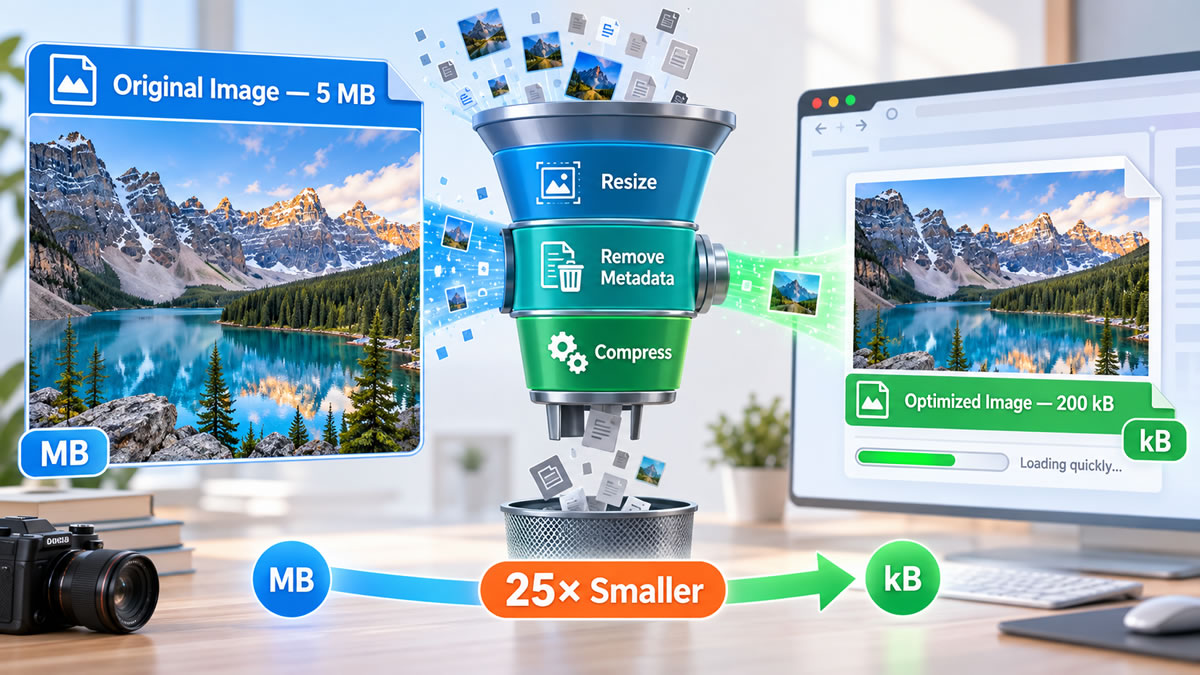
To convert megabytes to kilobytes, multiply by 1,000, so a 5 MB camera photograph is 5,000 kB. After resizing and encoding, a web copy of the same picture might occupy about 200 kB, one twenty-fifth of the original. Use the converter above for the exact unit conversion, follow the arithmetic to see how that reduction happens, and then try the browser-based compressor with your own image.
Megabyte to Kilobyte Formula
kB = MB × 1,000
So 1 MB = 1,000 kB and 1 kB = 0.001 MB. For example, 2.5 MB × 1,000 = 2,500 kB.
This converter uses decimal units. If your file manager shows a slightly different size, it is probably using binary units, where a "kilobyte" is 1,024 bytes and a "megabyte" is 1,048,576 bytes (see NIST's guide to binary prefixes).
Common MB to kB Values
| Megabytes (MB) | Kilobytes (kB) | Example on this page |
|---|---|---|
| 0.1 MB | 100 kB | — |
| 0.2 MB | 200 kB | The optimised web copy of the 5 MB photo |
| 0.3 MB | 300 kB | Each optimised image in the ten-photo page |
| 0.5 MB | 500 kB | The compressor's default target |
| 1 MB | 1,000 kB | — |
| 2.5 MB | 2,500 kB | The worked example in the formula |
| 3 MB | 3,000 kB | Each original photo in the ten-photo page |
| 5 MB | 5,000 kB | The camera photo that becomes a 200 kB web copy, and the compressor's upload limit |
| 10 MB | 10,000 kB | — |
How Image Optimisation Can Reduce a Photo from MB to kB
A photograph from a phone or digital camera may use several megabytes because it was created for editing, cropping or high-resolution viewing. A webpage usually needs a much smaller delivery copy. By adjusting the dimensions, format and encoding settings, the file can often be reduced from MB to kB without an obvious change at the size shown on the page. This is commonly called image compression, although a complete web-image workflow combines resizing, compression, format conversion and metadata removal.
Why the Camera Original Can Be Much Larger Than the Webpage Needs
A camera might save a photograph that is 4,000 pixels wide, while the article displaying it provides a space only 1,000 pixels wide. If the full original is sent to every visitor, the browser still downloads all those additional pixels before scaling the image down.
The source file may also contain EXIF information such as the camera model, exposure settings, orientation and, in some cases, location coordinates. Depending on the software and format, it might include an embedded preview, colour profile or editing information too. Some of that is valuable in an archival copy, so keep the original and prepare the published version separately.
Four Ways the File Can Become Smaller
- Reduce the pixel dimensions. Resize the web copy to the largest width it will be shown at, rather than keeping every pixel from the camera original.
- Choose a suitable image format. Photographs, screenshots, logos and illustrations do not all compress equally well in the same format.
- Adjust the encoding quality. A lossy format discards selected visual information to produce a smaller file, and more aggressive settings usually cause more visible degradation.
- Remove unneeded metadata. Deleting an embedded preview or unnecessary camera information reduces the file size, although this is separate from compressing the pixels.
Lossless and Lossy Compression Are Not the Same
Lossless encoding represents the image efficiently while allowing its decoded pixels to be reconstructed without a compression-related change. It suits exact edges, text and graphics, but it does not mean the whole file, including every piece of metadata, stays identical. Lossy encoding accepts controlled changes in return for a larger size reduction. It is often effective for photographs because small changes in texture or colour are hard to notice at normal viewing sizes. Pushed too far, it shows as smearing, ringing, blocks or banding.
Selecting a Format That Fits the Image
JPEG remains a familiar choice for continuous-tone photographs. PNG uses lossless compression and supports transparency, which suits some screenshots, diagrams and graphics. WebP and AVIF support modern encoding options and can often give smaller files, although the best result depends on the particular image and settings. Logos, icons and diagrams that start as vector artwork may be better delivered as SVG, which stays sharp at any size. No single format wins on size, quality and compatibility for every image. The MDN guide to web image formats compares the main options, including their compression and transparency support.
Example: Changing a 5 MB Photo into a 200 kB Web Copy
Suppose an original product photograph occupies 5 MB. A web developer creates a separate copy with smaller pixel dimensions, removes metadata that is not needed online and selects suitable encoding settings. The resulting file occupies 200 kB.
5 MB × 1,000 = 5,000 kB
5,000 kB ÷ 200 kB = 25
(5,000 − 200) ÷ 5,000 × 100 = 96%
The delivered copy is one twenty-fifth of the original, a reduction of 96%. The two files may look very similar when both are shown at the same modest size, but that does not make them identical. Enlarging, printing or closely examining the optimised version may reveal differences. The arithmetic explains the saving, but the useful result depends on how the compressed image actually looks, and the tool below lets you test that with your own picture.
Try the MB to kB Image Compressor
Use this tool to test the same idea with your own JPEG, PNG or WebP image. Choose a file up to 5 MB, enter a target in kilobytes and compare the original with the compressed result. Processing takes place in your browser and the selected image is not uploaded to our server.
Compression Result
How the Compressor Reaches the Target
The tool first applies the selected maximum dimensions. It then tests a series of encoding-quality settings. If quality adjustment alone cannot reach the requested kB target, it gradually reduces the pixel dimensions and tries again. The download is a new file and your original is not changed. Because the picture is redrawn and re-encoded, the new file carries no EXIF data, including any location coordinates, and no embedded colour profile.
The target is treated as a maximum, but extremely detailed images may need smaller dimensions to reach it. Converting to JPEG removes transparency and places transparent areas on a white background. Images larger than about 16.7 megapixels are scaled down first so that every browser can process them, and an image that is already smaller than the target can come out larger after re-encoding.
Using the Result: Quality, Performance and Responsive Images
The Result Depends on the Photograph
A 5 MB source will not always become a satisfactory 200 kB file. Images containing noise, foliage, hair, fabric or many fine textures can need more data than pictures with smooth backgrounds and simple shapes. Screenshots with small text also need care, because compression artefacts are particularly noticeable around letters and interface elements. Treat a file-size target as a goal rather than a guarantee, and ask whether the smallest tested version still shows the subject clearly in its intended context.
Why Reducing Image Weight Helps a Website
Smaller files need fewer bytes to cross the network, which can shorten download time, reduce mobile-data use and let visible content appear sooner on slower connections. The saving grows with the number of images. If ten photographs are reduced from 3 MB each to 300 kB each, the uncached image transfer falls from 30 MB to 3 MB:
10 × 3 MB = 30 MB
10 × 300 kB = 3,000 kB = 3 MB
That is 27 MB less image data on each uncached page load. Google's image SEO best practices make the same point: images are often the largest contributor to a page's size, which can make it slow and expensive to load, so apply current image-optimisation and responsive-image techniques.
Evaluate Quality at the Size Visitors Will See
Start with a high-quality source and create a separate web version. Resize it, test an appropriate format and compare several encoding settings, then inspect faces, text, edges, shadows, gradients and detailed areas at the size the image will be displayed. If defects are visible, use a less aggressive setting or a different format. If raising the file size brings no meaningful visual improvement, the smaller version is the more efficient choice. Keep the original separately so another version can be made later.
Send Different Sizes to Different Screens
Compressing one image is only part of the solution. A website can generate several widths and
let the browser pick a suitable candidate for the current layout and screen density, instead
of sending a desktop-sized file to a small mobile screen. The HTML features for this are
srcset, sizes and <picture>. Google advises always
including a fallback src on the img element, because some browsers
and crawlers do not understand srcset or picture. The
web.dev responsive-images guide
explains how appropriately sized candidates reduce unnecessary data transfer.
Reducing a photograph from MB to kB is therefore not one automatic trick. It is a series of choices about dimensions, encoding, format, metadata and delivery, and when they match how the image will actually be used, a website can transfer far less data while keeping the picture clear.
Sources and More File Size Converters
-
Google Search Central: image SEO best practices:
images as the largest contributor to page size, responsive images and the fallback
src. - MDN: image file type and format guide: JPEG, PNG, WebP, AVIF and SVG compared.
-
web.dev: responsive images:
srcset,sizesandpicture. - NIST: prefixes for binary multiples: decimal and binary meanings of kilobyte and megabyte.
The arithmetic in the examples is AbacaDigital's own, and the 5 MB and 200 kB figures are illustrations rather than measurements of a particular photograph. Figures on this page are checked against the sources listed. Spotted an error? Contact us.