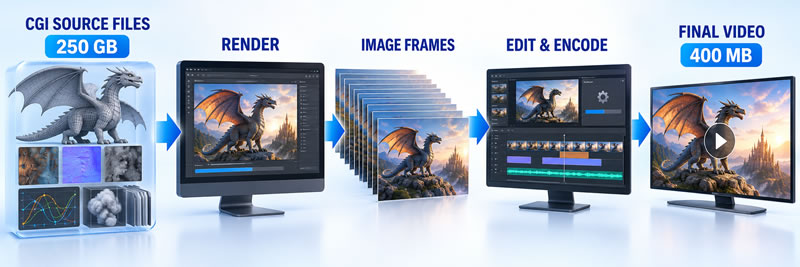
To convert GB to MB, multiply by 1,000: 1 GB = 1,000 MB, so 5 GB is 5,000 MB. The difference between the two units is easiest to see in CGI. A finished animation may be only a few hundred megabytes, even though the editable models, textures, simulations and rendered frames used to make it occupy hundreds of gigabytes. You can also browse all file size converters.
Common GB to MB Values
| Gigabytes | Megabytes | Example use |
|---|---|---|
| 0.5 GB | 500 MB | Downloads, application updates or short videos |
| 1 GB | 1,000 MB | A small mobile-data allowance |
| 5 GB | 5,000 MB | Cloud storage or mobile data |
| 10 GB | 10,000 MB | Mobile data or cloud storage |
| 64 GB | 64,000 MB | Phones, tablets and removable storage |
| 128 GB | 128,000 MB | Phones, tablets and SSDs |
| 250 GB | 250,000 MB | The illustrative CGI production project below |
| 256 GB | 256,000 MB | Laptops and solid-state drives |
| 512 GB | 512,000 MB | Laptops and solid-state drives |
Why CGI Production Files Become So Large
A CGI production contains much more than the pictures eventually shown to viewers. Artists work with editable 3D models, detailed textures, animation rigs, lighting instructions, audio layers and simulation data. These resources must preserve enough information for the production team to make changes, so they are not stored like a compact streaming video.
A production can include:
- Millions of polygons used to construct characters, objects and environments
- Separate files for clothing, hair, facial animation and movement
- High-resolution textures that may occupy hundreds of megabytes each
- Simulation caches for smoke, water, fire, particles and destruction
- Multiple versions of scene files, backups and test renders
Real productions can be far larger than the example below. For Avatar, storage vendor BlueArc said that Weta Digital used a clustered system to store and manage over 500 terabytes of data feeding thousands of render nodes, plus another 700 terabytes of nearline storage (see insideHPC and Data Center Knowledge). That is over 500,000 GB, or 500,000,000 MB, which is 2,000 times the 250 GB example used on this page. Other reports quote different totals, so treat the figure as the vendor's own.
Thousands of Rendered Frames
Rendering produces a finished image for every frame of the animation. At 30 frames per second, a five-minute video contains:
5 minutes × 60 seconds × 30 frames = 9,000 frames
If each lossless rendered frame occupies 20 MB, the complete image sequence requires:
9,000 × 20 MB = 180,000 MB
The rendered frames alone therefore use 180 GB under the conversion used on this page. This does not include the models, textures, simulations, audio or project files needed to create them.
Using the GB to MB Converter for Production Data
This converter uses the relationship 1 GB = 1,000 MB. To convert gigabytes to megabytes, multiply the number of gigabytes by 1,000:
MB = GB × 1,000
Entering the illustrative 250 GB CGI project into the converter gives:
250 GB × 1,000 = 250,000 MB
The final video occupies approximately 400 MB. Expressing both amounts in megabytes makes their difference clear:
250,000 MB ÷ 400 MB = 625
The editable production data is therefore 625 times the size of the delivered video in this example. The reduction is not caused by changing the measurement unit. It happens because rendering removes the editable construction data and video encoding compresses the finished images and audio.
How Video Compression Reduces the Final Size
After rendering, the frames can be encoded using a video format such as H.264, H.265 or AV1. Consecutive frames often contain similar information. If a character moves while the background remains unchanged, the codec does not always need to store another complete image of the background.
Instead, an encoded video can store selected reference frames and describe how later frames differ. Compression may also remove visual and audio detail that is unlikely to be noticed at the intended viewing size and bitrate. A 400 MB file for a five-minute video works out at about 80 MB per minute, a realistic size for a delivered video. You can try this yourself in the encoding test below.
| Production component | Example size | Included in the delivered video? |
|---|---|---|
| 3D models and animation files | 12 GB | No, only their rendered appearance |
| Textures and materials | 18 GB | No, visible details are rendered into the frames |
| Simulation caches | 35 GB | No, only the visible result |
| Rendered image sequence | 180 GB | Encoded into compressed video frames |
| Audio and project files | 5 GB | Only the final audio mix is included |
| Total production data | 250 GB | Used to create and revise the animation |
| Final encoded video | Approximately 400 MB | Delivered to viewers |
These figures are illustrative. Actual storage depends on the duration, resolution, frame rate, visual complexity, codec, bitrate and production workflow. A studio working with several projects may eventually measure its storage in much larger totals.
The reverse calculation is useful when a final video or download is listed in MB but must be compared with storage measured in GB. The megabytes to gigabytes converter performs that calculation.
Try It: How Raw Video Frames Become a Small File
A finished video is small because an encoder throws away what the eye is unlikely to miss and stores how each frame differs from the last. You can see the effect with a short test that runs in your browser. It draws a few seconds of animation, records it at the quality you choose, and compares the size of the raw frames with the size of the encoded file.
Uncompressed Versus Delivered Video
| Video | Raw size per frame | Raw size per minute at 30 frames a second | Delivered size per minute | Raw is larger by |
|---|---|---|---|---|
| 1080p (1,920 × 1,080) | 6.2208 MB | 11,197.44 MB (11.197 GB) | about 60 MB | about 187 times |
| 4K (3,840 × 2,160) | 24.8832 MB | 44,789.76 MB (44.790 GB) | about 170 MB | about 263 times |
The delivered sizes are Apple's approximate iPhone camera figures, reported by TechRadar, so the ratios are approximate. The raw sizes are exact: width × height × 3 bytes is the size of one frame, multiplied by 30 frames a second and 60 seconds, then divided by 1,000,000 to give MB.
Run the Test
Choose your settings and press Run. The test runs in real time, so keep this tab visible until it finishes.
The encoded result, played back from the recorded file:
What the Test Shows, and What It Doesn't
Your browser's own encoder does the work, so the container and codec depend on the browser, and the quality setting is a target that the encoder may not hit exactly. The test reports the size it actually measured. The animation is synthetic and far simpler than a real CGI production, so the ratio you see is not a measurement of any real project. The 250 GB and 400 MB figures earlier on this page are illustrations of the same principle at a larger scale. Nothing you do here is uploaded: the animation, the recording and the playback all stay in your browser.
Using GB to MB When Creating a Disk Partition
A computer drive may be advertised in gigabytes, while an operating system installer asks for the new partition size in megabytes. The converter can translate the advertised capacity into the unit requested by the installer.
For example, a 250 GB partition becomes:
250 GB × 1,000 = 250,000 MB
Some installers count in 1,024-based sizes, in which case a 250 GB partition would be listed as 256,000 MB (250 × 1,024). Check which convention the installer uses before typing in a number.
The finished partition may provide slightly less usable space because formatting and file-system structures occupy part of the drive. Recovery partitions and other system areas can further reduce the capacity available for ordinary files.
Confirm that sufficient space remains for the operating system and personal files, and avoid allocating the drive's entire capacity when additional recovery or maintenance space is required.
Figures on this page are checked against the sources linked above. Spotted an error? Contact us.